Update: direct import was retired
July 31, 2026: Direct Audible import is no longer available in Bloox as of version 1.4.2. This article remains online as a historical account of a feature that shipped in an earlier version.
To listen to an Audible purchase in Bloox today, use a desktop tool such as Libation to export a standard M4B file, then import that file from your device, cloud storage, or computer.
When I released Bloox, I started getting a version of the same message from several people.
Sometimes it came through Reddit. Sometimes through a direct message. Sometimes through the feedback button inside the app.
The details changed, but the basic shape was:
This looks great. I would like to try it. But I already have a giant Audible library. How do I get those books into Bloox?
This is a very reasonable question.
It is also the kind of question that reveals the difference between a feature technically existing and a feature being meaningfully usable.
Bloox has always supported standard audiobook files. M4B, MP3, folders full of chapters, Google Drive, iCloud. If you have the files, importing them is simple.
But most audiobook listeners do not begin with a tastefully organized folder of standard M4B files. They begin with years of purchases inside Audible.
So my first answer was usually: use Libation.
That answer was correct.
It was also not good enough.
The original path worked, if you were sufficiently motivated
Libation is a free, open-source desktop tool for managing your audiobook library as standard files. I use it myself. It is excellent.
Once you have those files, Bloox can import them from iCloud, from your phone, from Google Drive, or directly from your computer over Wi-Fi.
For someone already comfortable managing an audiobook library, this is a perfectly reasonable setup. It gives you control over your files. It works across apps. It is not tied to a single device.
For someone who downloaded Bloox because they wanted to read along with an audiobook and ask what they missed, it can feel like an unexpected side quest.
Install a desktop app. Connect your Audible account. Download the book. Find the exported file. Move it somewhere your phone can reach. Import it into Bloox.
None of those steps is individually outrageous.
Together, they create friction.
And friction is very good at killing curiosity. A person can be interested in a new app and still decide they do not want to spend their evening learning the surprisingly rich ecosystem of audiobook file conversion.
People were telling me exactly where the product was losing them.
So I started looking for a simpler path.
Designed with privacy in mind
The product experience was easy to describe: open the import sheet, choose Import from Audible, pick a book, and let it import.
I wanted that simplicity without asking users to hand over more trust than the feature actually needs. So privacy was the starting point, not an afterthought.
The goal was not merely to make Audible import easy. It was to make it easy while keeping your information private.
Your library stayed private on your device. Books imported through the feature were stored locally on your iPhone and were not uploaded to Bloox servers for processing. Signing out inside Bloox cleared the local account data.
That is the version I would personally be willing to install on my own phone: simple to use, and private by default.
How direct Audible import worked
The user flow was intentionally boring. This is a compliment.
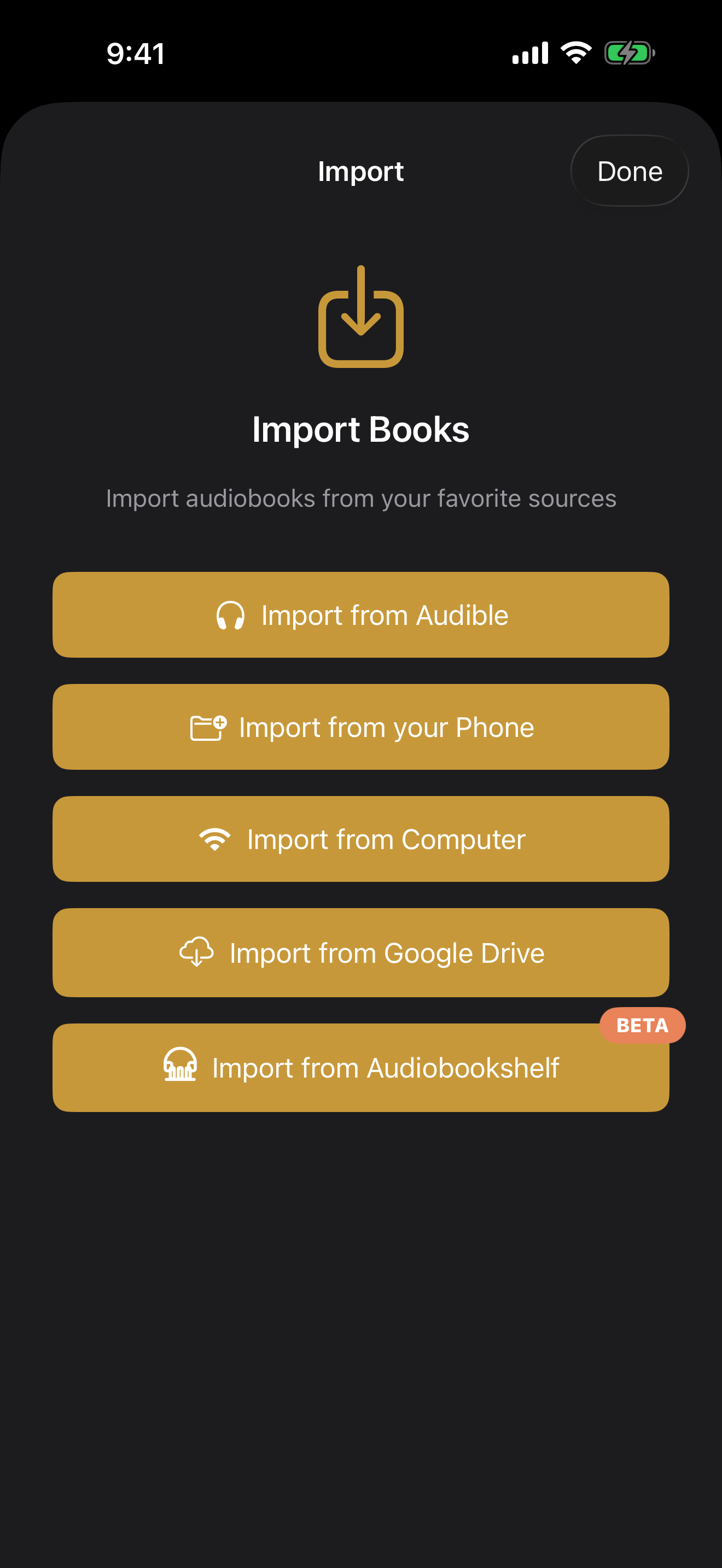
Historical screenshot from an earlier version of Bloox. Direct Audible import is no longer available.
1. Open the import sheet
In that version of Bloox, tapping the Add button showed the available import sources. Import from Audible appeared at the top.
2. Connect your Audible library
Tapping Import from Audible opened prompts for connecting an Audible library.
3. Browse your Audible library
After sign-in, Bloox showed the Audible library. Listeners could refresh the list and tap a title to see its cover, author, narrator, length, description, and other metadata.
4. Download and import
Choosing Download & Import requested the selected book, started the download, and returned the listener to the Library.
5. Import progress appeared in the Library
A temporary Audible Imports section appeared above the book list. It showed download progress, and downloads continued in the background if the listener switched apps or turned off the screen.
If a download finished while Bloox was in the background, the app resumed that work the next time it opened.
There was no special Audible player after that. The book landed in Bloox as a normal local audiobook. That was important to me because otherwise the feature would have become a little island: Audible books over here, regular files over there, and now the user has to remember which features apply to which books.
I wanted the import source to disappear after the import was done.
Once the book was in the library, it was just another book.
What happened after an import?
The selected book was downloaded to the device and added to the local Bloox library alongside other books.
The audiobook stayed on the device. It was not uploaded to Bloox servers for processing.
Once the book was inside the library, it behaved like the other books in Bloox. It could use chapter navigation, metadata, playback progress, transcription, spoken “What did I miss?” recaps, character help, and Book Chat.
This was one reason the feature was worth building carefully. Audible import was not a separate player bolted onto the side of the app. It was an easier front door into everything Bloox already did.
A few honest limitations
The first version was deliberately narrow.
- US Audible accounts only. Audible has different regional marketplaces. The flow targeted the US marketplace.
- One book at a time. Listeners browsed their libraries and chose individual books to import. It was not a bulk-migration tool.
- Purchased books were the intended path. Audible import was designed for books the listener owned.
I would rather be clear about those limits than pretend every Audible edge case has been solved forever. Software has a way of objecting to that sort of confidence.
Why not bulk import everything?
This is the obvious follow-up question.
If someone has a huge Audible library, why not let them import the entire thing in one button?
Because the first version should be boringly reliable before it becomes ambitious. Audiobook files can be large. Downloads can be interrupted. Importing uses real CPU and memory. Some titles may behave differently. A bulk importer multiplies all of that and then asks the user to understand a queue of failures, retries, partial successes, and possibly a very warm phone.
One-at-a-time import is less impressive in a demo. It is also much easier to understand when something goes wrong.
The intended progression was simple: pick the next book, import it, confirm the experience worked, then import another.
That is not the final form forever. It is the right first step.
Why keep the Libation path?
Direct import made the common case easier. It did not replace the value of owning and managing your own files.
If you want a full backup of your Audible library on your computer, want to organize files exactly as you like, or use multiple audiobook players, Libation is still a great tool.
Today, Bloox supports the file-management route. Export a standard audiobook file, then import it from your device, cloud storage, or computer.
The point is not to force everyone into the same hobby.
The point is to remove the unnecessary steps between “I have an audiobook” and “I am listening to it in the app I want to use.”
This feature came from listening to users
I built Bloox because I wanted a better audiobook experience for myself. But releasing an app changes the nature of the project.
People bring their own habits. Their own libraries. Their own assumptions. Their own entirely reasonable unwillingness to install three things before trying the first thing.
The repeated Audible question was useful because it was not asking for a random extra feature. It was identifying a barrier to the features already there.
Transcription is only helpful after a book is imported.
Recaps are only helpful after a book is imported.
Book Chat is only helpful after a book is imported.
Sometimes the highest-leverage product work is not inventing another clever thing. It is making the clever things easier to reach.
Bring an exported audiobook into Bloox
Export an Audible purchase as a standard M4B file with Libation, then import it into Bloox and try the smarter listening features with a story you already own.
Download Bloox Learn more about Bloox →